A Java developer often works on several stacks at the same time: a
legacy project in Java 8, a service in 17, a new project in 25. Maven
here, Gradle there. Node for docs, Python for MkDocs. And around them,
tools: aws, gh, kubectl, helm.
Each SDK and each tool comes with its own installer. Little by little,
the machine fills up: global versions that mix, sudo, a .zshrc
filled by installers, an AWS variable left global. My question: how to
have the right version of each SDK and each tool in each project,
without installing anything as root, with one tool, and a terminal that
stays fast?
Here is my dev machine on macOS, built on a clean OS that I want to keep clean.
My criteria for a dev machine
- Nothing as root. No
sudoto install or update a dev tool. Everything lives in my user folder. - One tool for SDKs and tools. One place, one command, one file to read.
- The right version on
cd. I enter a project and I get its Java and Maven versions, without thinking about it. - Isolation. Each project has its versions. A special environment (for example a local AWS emulator) stays in one tab.
- A terminal that stays fast, even with completions for all the tools.
The rest of the post answers these criteria, in this order.
mise in a few words
mise describes itself as “dev tools, env vars, and tasks in one CLI”: it installs the tools of a project, sets its environment variables and runs its tasks. Here, I use it mostly for the tools. It is one binary, under the MIT license, and it also works on Linux and Windows.
The install is one command, with no sudo:
curl -fsSL https://mise.run | sh
The script checks the SHA-256 sum of the binary and puts it in
~/.local/bin/mise. It does not change ~/.zshrc: it prints the line
to add. I add it myself:
eval "$("$HOME/.local/bin/mise" activate zsh)"
In a new tab, mise doctor confirms it:
activated: yes
...
No problems found
mise keeps everything in my folder: the tools in
~/.local/share/mise/installs/<tool>/<version>, the configuration in
~/.config/mise/config.toml.
One detail for IntelliJ: an app started from the Dock reads the
environment of the login shell, not the one of .zshrc. The mise docs
recommend adding the “shims” to ~/.zprofile, so that these apps find
the tools too:
eval "$("$HOME/.local/bin/mise" activate zsh --shims)"
All SDKs and tools in two commands
First the languages, with their LTS version when there is one:
mise use -g java@temurin-25 node@lts maven@3.10 gradle@9 python@3.15
Then the command-line tools:
mise use -g uv starship gh aws-cli helm github:floci-io/floci-cli
-g means “global”: these are the default versions of the machine.
Most of them come from the mise registry (more than 1,000 tools). A
tool that is not in the registry installs from its GitHub releases,
like github:floci-io/floci-cli here.
The result is a readable file that describes the machine:
# ~/.config/mise/config.toml
[tools]
java = "temurin-25"
node = "lts"
maven = "3.10"
gradle = "9"
python = "3.15"
uv = "latest"
starship = "latest"
gh = "latest"
aws-cli = { version = "latest", symlink_bins = "true" }
helm = "latest"
"github:floci-io/floci-cli" = "latest"
A version is easy to read: temurin-25 takes the latest Temurin 25,
lts the latest Node LTS, 3.10 the latest patch of Maven 3.10. On a
new machine, you copy this file, then run mise install.
uv, on top of Python? mise installs Python itself. uv is for what you do with Python:
uvx mkdocs serveruns MkDocs without a global install, anduv syncmanages the dependencies of a project.
One version per project
Each project can have its own file. For quickfixj, a project still on Java 8:
# ~/devs/GitHub/quickfixj/mise.local.toml
[tools]
java = "corretto-8"
maven = "3.10"
mise.local.toml is a personal file: the mise docs describe it as
“personal overrides, not committed”. I add it to the .git/info/exclude
file of the project, so that Git does not see it. For a version shared
with the team, you put a mise.toml in the repository instead. The
file closest to the current folder wins, and what it does not set
comes from the global configuration.
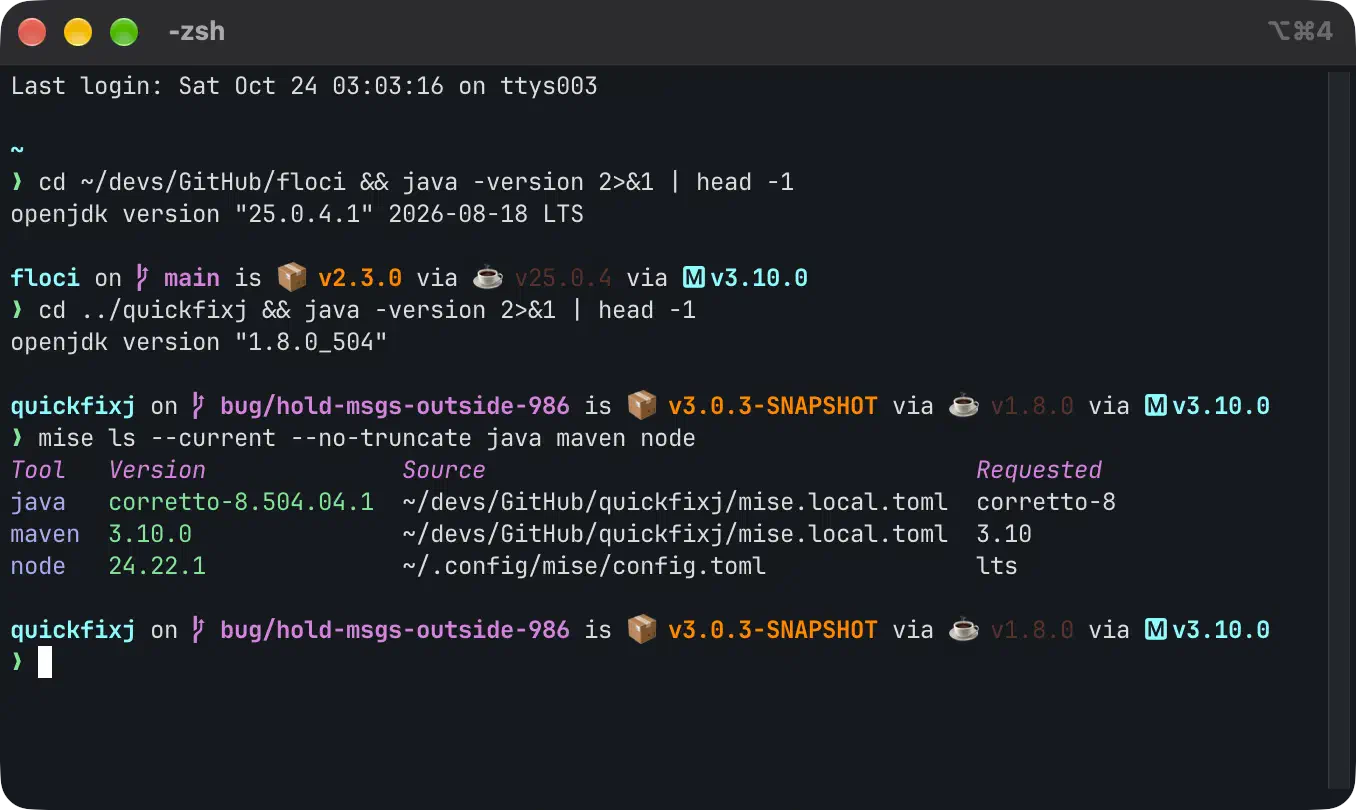
This is what the first screenshot shows. In floci, java -version
gives Java 25; in quickfixj, Java 8. And mise ls --current tells
where each version comes from: Java and Maven from the
mise.local.toml of the project, Node from
~/.config/mise/config.toml. mise also updates JAVA_HOME.
A project already has a version file, like a .nvmrc? mise can read
it, once the option is on:
mise settings add idiomatic_version_file_enable_tools node
In a folder whose .nvmrc says 20, I get Node 20; anywhere else,
Node 24 (the LTS). Nothing to change in the project.
A comfortable terminal
The prompt: Starship
Starship shows what matters in the current
folder: the Git branch, the project version, Java, Maven, the AWS
profile. mise already installed it; you only turn it on at the end of
~/.zshrc:
eval "$(starship init zsh)"
Its docs ask for a Nerd Font, a font with icons. I took JetBrains Mono
Nerd Font, from the
official Nerd Fonts releases
(the SHA-256 sum of each archive is published there). To stay without
root, the font goes to ~/Library/Fonts: it is installed for my user
only. Then I choose it in the terminal settings.
Completions without slowing the shell
The Tab key completes the commands of docker, kubectl, gh…
Many guides load each completion at startup:
source <(kubectl completion zsh)
The program then runs in each new tab. Docker and kubectl document
another way: write the completion once to a file, in a folder that zsh
knows (the fpath). zsh loads it only on the first Tab.
mkdir -p ~/.zsh/completions
kubectl completion zsh > ~/.zsh/completions/_kubectl
docker completion zsh > ~/.zsh/completions/_docker
gh completion -s zsh > ~/.zsh/completions/_gh
And in ~/.zshrc, before compinit:
fpath=("$HOME/.zsh/completions" $fpath)
autoload -Uz compinit
compinit
I measured how long a shell takes to open with the same 10 completions (docker, kubectl, mise, gh, glab, helm, uv, uvx, Starship, hvm), 10 runs for each case:
| Method | Shell startup |
|---|---|
| No completion | 93 ms |
Files in the fpath | 92 ms |
source <(… completion zsh) | 348 ms |
The files cost nothing at startup. Their only limit: they describe the
tool at the time you created them. After an update (mise upgrade), I
create them again with a small script, ~/.zsh/update-completions.zsh,
with one line per tool.
Two special cases. The aws completion is not a file but a program;
the AWS docs give these two lines for zsh:
autoload -Uz bashcompinit && bashcompinit
complete -C aws_completer aws
And an alias keeps the completion of its command: alias k=kubectl,
then compdef k=kubectl.
History and a few aliases
macOS keeps 1,000 lines of history (SAVEHIST in /etc/zshrc). I keep
more, with no duplicates, shared between tabs:
HISTSIZE=50000
SAVEHIST=50000
setopt HIST_IGNORE_ALL_DUPS SHARE_HISTORY HIST_IGNORE_SPACE
With HIST_IGNORE_SPACE, a command that starts with a space is not
saved: useful for a command that contains a secret. And a few aliases:
alias ls='ls -G'                              # colors
alias ll='ls -lrth'
alias lla='ls -lrtha'
alias reload='exec zsh'                       # reload the shell
alias ports='lsof -nP -iTCP -sTCP:LISTEN'     # who listens on which port
Isolate an environment: the Floci example
Floci is a local AWS emulator (I
introduce it in
AWS locally with Floci). To use
it, the AWS client must call http://localhost:4566. The easy way
is a global variable: export AWS_ENDPOINT_URL=http://localhost:4566
in .zshrc. But then every AWS command on the machine goes to the
emulator, and you end up forgetting it.
The AWS docs let you put the address in a named profile of
~/.aws/config:
[profile floci]
region = us-east-1
endpoint_url = http://localhost:4566
The test credentials go to ~/.aws/credentials, under [floci]. I
have no default profile. The result:
- in a normal tab,
awsfinds no credentials (“Unable to locate credentials”): the command goes neither to Floci nor to a real AWS account; - with
AWS_PROFILE=floci(or--profile floci), it goes to Floci.
So that I do not type AWS_PROFILE each time, a file
~/.zsh/profiles/floci.zsh sets it and loads the floci completion:
export AWS_PROFILE=floci
if command -v floci >/dev/null; then
  source <(floci completion zsh)
fi
The floci completion is a script that cannot go into the fpath. So
it stays in this profile, and costs nothing to the other tabs.
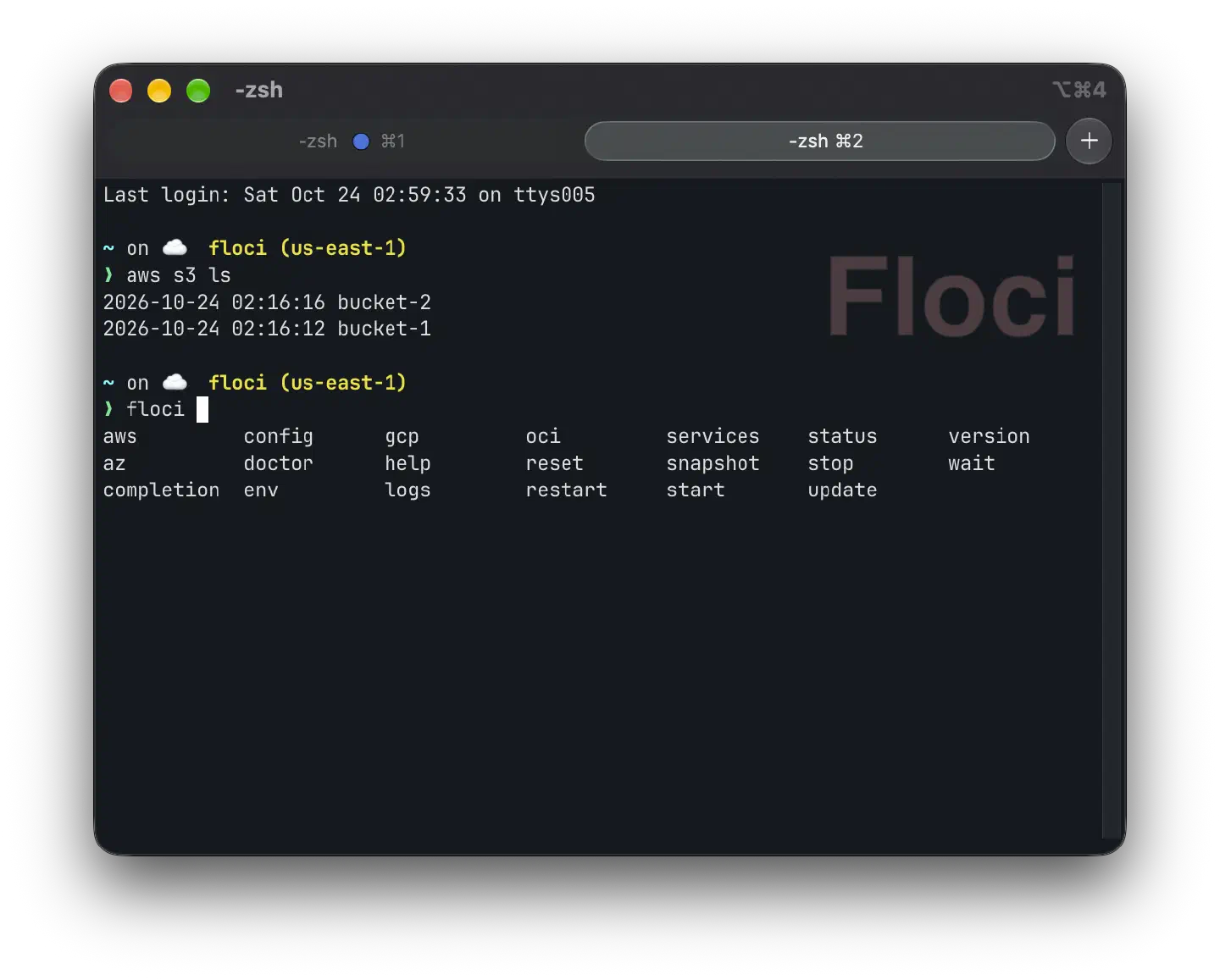
In iTerm2, a “dynamic profile” creates a “Floci” profile from a JSON
file, put in ~/Library/Application Support/iTerm2/DynamicProfiles/.
It inherits from the default profile and shows a badge:
{
  "Profiles": [
    {
      "Name": "Floci",
      "Guid": "647AE153-1576-4C43-A514-1581774C216B",
      "Dynamic Profile Parent Name": "Default",
      "Badge Text": "Floci"
    }
  ]
}
The iTerm2 docs ask for a unique Guid: I created it with uuidgen.
iTerm2 puts the profile name in the $ITERM_PROFILE variable (I saw
it, but its docs do not mention it). ~/.zshrc then loads the Floci
profile in these tabs. In another terminal, like Ghostty or the one in
IntelliJ, a profile floci function does the same.
If you already have tools installed as root
A tool already installed as root? Take
aws, often installed with the official package in/usr/local. First install the mise version (mise use -g aws-cli), check withwhich -a awsthat it comes first, then uninstall the old one with the Uninstall the AWS CLI page from AWS. Same idea for the other tools: the mise version first, the old one after.
Summary
| Criterion | My answer |
|---|---|
| Nothing as root | mise and all the tools in ~/.local, the font in ~/Library/Fonts |
| One tool | mise use -g for SDKs and tools; one file, ~/.config/mise/config.toml |
The right version on cd | a mise.local.toml or mise.toml per project, and the existing .nvmrc files |
| Isolation | one file per project; a named AWS profile with no default profile; a Floci tab |
| A fast terminal | completions in files: 92 ms instead of 348 ms |
The full ~/.zshrc:
# PATH: no duplicates, user tools first
typeset -U path PATH
path=("$HOME/.local/bin" $path)

# History
HISTSIZE=50000
SAVEHIST=50000
setopt HIST_IGNORE_ALL_DUPS SHARE_HISTORY HIST_IGNORE_SPACE

# Completions: the files in ~/.zsh/completions
fpath=("$HOME/.zsh/completions" $fpath)
autoload -Uz compinit
compinit
autoload -Uz bashcompinit && bashcompinit
complete -C aws_completer aws

# Aliases
alias ls='ls -G'
alias ll='ls -lrth'
alias lla='ls -lrtha'
alias reload='exec zsh'
alias ports='lsof -nP -iTCP -sTCP:LISTEN'
alias k=kubectl
alias update-completions='~/.zsh/update-completions.zsh'
compdef k=kubectl

# mise: the versions of the current folder
eval "$("$HOME/.local/bin/mise" activate zsh)"

# Terminal profiles (~/.zsh/profiles), for example: profile floci
profile() {
  local target="$HOME/.zsh/profiles/${1:l}.zsh"
  if [[ -f "$target" ]]; then
    source "$target"
  else
    print -u2 "Unknown profile: $1 (see the files in ~/.zsh/profiles)"
    return 1
  fi
}
case "$ITERM_PROFILE" in
  Floci) profile floci ;;
esac

# Prompt (keep it at the end)
eval "$(starship init zsh)"
Tested on macOS 27 (Apple Silicon) with zsh 5.9, mise 2026.10, Starship 1.27, iTerm2 and Ghostty, Floci 2.3.
Sources: the mise documentation (“Getting started”, “Configuration”, “Editors and IDEs”, Java, Node), the zsh manual, the completion pages of Docker, kubectl and the AWS CLI, the AWS guide on endpoints, the Starship guide and the docs of iTerm2 dynamic profiles.