All day long, I have two Chrome windows open: my personal profile (Gmail, my accounts) and my work profile (a Google Workspace account for the company). On macOS, this is annoying.
The problem
On macOS, all Chrome profiles live in one app. The Dock and Cmd+Tab group windows by app. So:
- the Dock shows one Chrome icon for all profiles;
- Cmd+Tab shows one Chrome. To go from the personal window to the work window, you need Cmd+`, the Window menu or Mission Control;
- in Mission Control, personal and work windows are mixed.
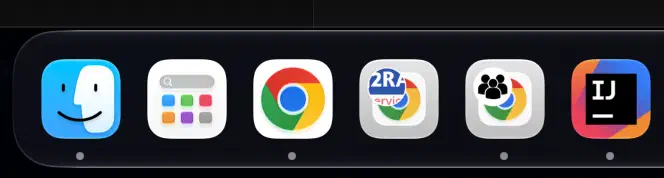
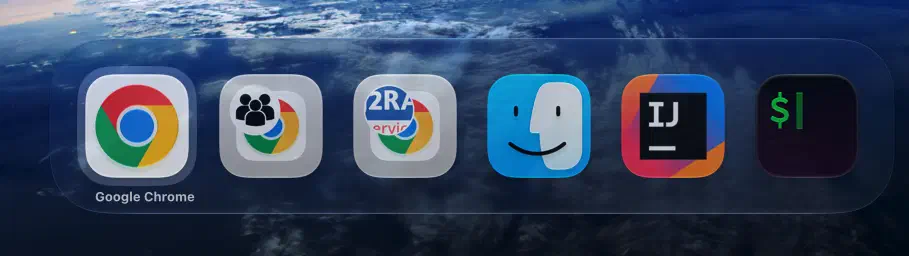
I wanted something simple: one icon per account in the Dock, and one entry per account in Cmd+Tab.
What I tried
Chrome profiles. This is the normal solution, but it is also the cause of the problem: all profiles stay in the same app.
An Automator launcher. Many guides suggest a small app that starts Chrome with the right profile. It opens the right profile, but the window goes into the same Chrome app. The Dock and Cmd+Tab do not change.
Chrome web apps. “Install page as app” gives a real icon in the Dock and in Cmd+Tab. But it is one app per site: Gmail, Calendar, Drive… You cannot browse freely.
Existing tools. Epichrome made apps based on Chromium. Its author stopped the project: the last version, 2.4.27, is from January 2022. chrome-schismator, a script on GitHub, starts several Chrome instances, each with its own icon. And I am not the only one who wants this: on Mozilla Connect, an idea asks for the same thing in Firefox. Its author writes that today you can only get it with “fragile third-party scripts”.
The idea: one app, one id
macOS knows an app by its id: the CFBundleIdentifier in the Info.plist file. For
Chrome, it is com.google.Chrome. All profiles have the same id, so macOS puts them
together.
So the plan is easy: copy Google Chrome.app and change this id in the copy. For
macOS, com.google.Chrome.Work is another app. It has its own Dock icon and its own
Cmd+Tab entry.
One problem is left: the copy and the original Chrome must not share the same data
folder (profiles, cookies, history). Here, Chromium already has the answer. In its
source code (chrome/common/chrome_paths_mac.mm), a key of the Info.plist,
CrProductDirName, sets the data folder in ~/Library/Application Support. Google uses
it for Chrome Canary, which uses Google/Chrome Canary. So this is not a hack: it is a
mechanism that Chromium already has.
The copy changes three things:
Info.plist key | Value | Effect |
|---|---|---|
CFBundleIdentifier | com.google.Chrome.Work | a separate app (Dock, Cmd+Tab) |
CFBundleName, CFBundleDisplayName | Chrome Work | the name you see |
CrProductDirName | Google/ChromeWork | a separate data folder |
One important detail: when you change the Info.plist, the Google signature is not
valid anymore. You must sign the copy again on your Mac, with a local signature (“ad
hoc”). This is the cause of almost all the limits. More on that below.
The script
I put all this in a script, copy-chrome.sh. It copies Chrome, changes the
Info.plist, adds a badge on the icon if you want, and signs the copy.
# Create a copy, with the company logo as a badge
./copy-chrome.sh Work --badge ~/Pictures/company-logo.png

# After an update of Chrome: make the copy again (the badge is kept)
./copy-chrome.sh Work

# Remove the copy and all its data
./copy-chrome.sh Work --remove
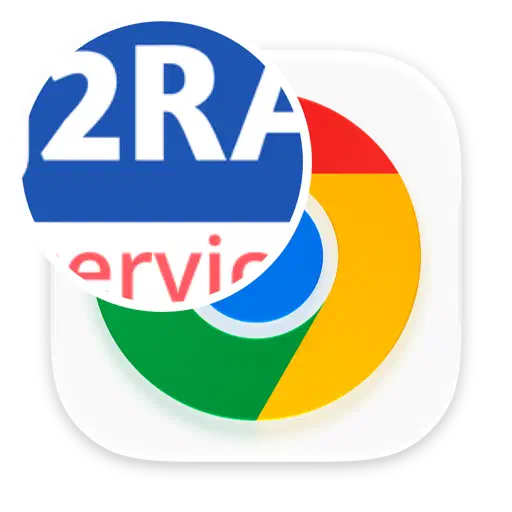
The badge is a round image, at the top left of the Chrome icon. A small Swift program, next to the script, draws it. With it, you see at once which Chrome is which in the Dock.
On the first launch, the copy starts empty, like a new Chrome. You sign in to your Google account, turn on sync, and your bookmarks, passwords and extensions come back. Cookies do not come back: you must sign in to websites again. The original Chrome and its profiles are not changed.
What breaks
This is not an official solution, and it has a cost. Everything comes from the same cause: Google does not sign the copy anymore.
Passkeys saved on the Mac
In a copy, passkeys saved on the Mac are not offered: not the ones from Apple Passwords, and not the ones from Google Password Manager. Normal passwords still work.
What I saw on a sign-in page:
| Offered at sign-in | Original Chrome | Copy |
|---|---|---|
| Password (Google Password Manager) | yes | yes |
| Passkey from Google Password Manager | yes | no |
| Passkey from Apple (Passwords, iCloud Keychain) | yes | no |
| Passkey on the phone (QR code) | yes | yes |
Why? The Chrome from Google has special rights (“entitlements”) that Apple gives only to
an app signed by its developer: access to passkeys and to some keychain groups. A local
signature cannot have them. For example, TeamDev, who makes a browser based on Chromium,
explains that Touch ID passkeys need the keychain-access-groups entitlement and a
“provisioning profile” in the app. I did not check the exact cause in the Chromium code
yet: it is the most likely reason, not a sure fact.
The workaround that works: “Use a passkey from another device”. Chrome shows a QR code, I scan it with my phone, and the passkey on the phone confirms the sign-in. You just need the phone near you, with Bluetooth on.
The keychain asks again
After each new copy, macOS asks again for access to “Chrome Safe Storage”, the key that protects the passwords and cookies of Chrome. The keychain knows an app with a local signature by the exact hash of its code, and this hash changes with each signature. Just click Always Allow. Do not click Deny: Chrome could not read its data anymore.
No automatic update
The copy does not update itself. After each update of the original Chrome, I run the script again. If the copy is already up to date, it does nothing.
Two traps during development
For those who want to do it themselves:
- Finder attributes. Chrome files have the
com.apple.FinderInfoattribute, andcodesignrefuses to sign: “resource fork, Finder information, or similar detritus not allowed”. Remove them first withxattr -cr. codesign --deep. Chrome sometimes keeps the old version of its framework next to the new one.--deeptries to sign everything and breaks this old version. The fix: sign only the main app.
And one wall: macOS protects the data folder of the original Chrome (TCC). Reading it
fails with “Operation not permitted”, even with sudo. So you cannot copy an existing
profile: each copy starts from zero, and sync does the rest.
Which profile goes where?
Because of passkeys, the split is quite clear:
- In the original Chrome: the accounts that use passkeys or security keys. It is also the default browser, which gets the links you open from other apps.
- In a copy: the accounts with a password or SSO, for a well separated use. For me, this is the Google Workspace work account: Gmail, Calendar, Drive and the company tools.
My personal profile uses many passkeys, so it stays in the original Chrome. One copy is enough, for work.
Summary
| Solution | Separate Dock and Cmd+Tab | Mac passkeys | Free browsing |
|---|---|---|---|
| Chrome profiles | no | yes | yes |
| Chrome web apps | yes, one per site | likely | no |
| A copy with copy-chrome | yes | no (QR code) | yes |
| Another browser | yes | yes | yes |
For me, the copy is the right trade-off: one icon per account, and all of Chrome for browsing. Losing passkeys is real, but the QR code works around it, and the profile that needs them most stays in the original Chrome.
I tested it with Chrome 155 on macOS 27. Keep in mind that this is not official: Google does not support it, and a future version of Chrome or macOS can break it.
The script and the references
The script is on GitHub, with its user guide: tips-and-scripts/macos/copy-chrome.
To go further:
- Chromium source code:
chrome_paths_mac.mm(theCrProductDirNamekey) - TeamDev: passkeys and Touch ID in a Chromium browser
- Mozilla Connect: one Dock icon per profile
- Epichrome (project stopped)
- chrome-schismator